Get started
App guide
Learn the profile controls, create on the web, and transfer your profile to the Bean Pounder app.
Build your next shot.
Create a profile in the web editor, save the JSON file, then import it in the mobile app and send it to your Bean Pounder. This guide walks through the controls with real screenshots of the web editor.
Start a profile
Open Profiles → Profile editor. Give your profile a name you will recognize on your phone. You can work without an account or a connected machine.
New clears the editor after confirmation. Import JSON opens an existing file. Export JSON saves your work to your computer.

“Gentle rise” demonstrates three steps and the controls below. It is an editing example, not a recommended recipe for every machine or coffee.
Shape each step
A profile runs through a sequence of steps. Select a step to edit it, or choose Add step to extend the sequence, up to 25 steps.
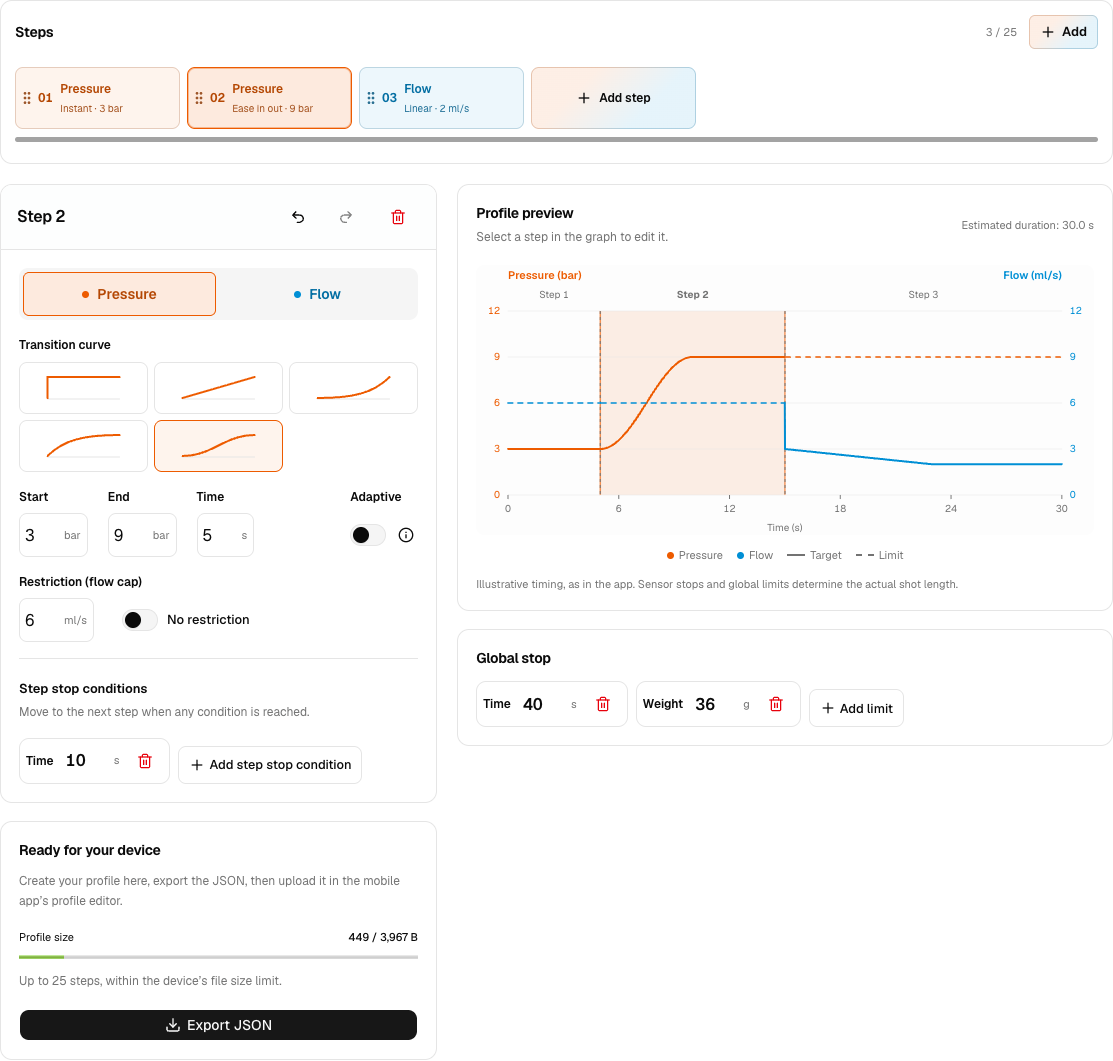
- Pressure or Flow
- Choose which value the step controls: pressure in bar or flow in ml/s. Each step can use a different mode.
- Target start, end, and time
- A ramp moves from the start value to the end value over the target time, entered in seconds. Instant applies the end value immediately, so start and time are disabled.
- Transition curve
- Linear changes steadily. Ease in starts slowly; Ease out slows near the end. Ease in out does both. Instant skips the ramp.
- Restriction
- A pressure step can cap flow; a flow step can cap pressure. Turn on No restriction to remove the cap, or turn it off to edit the cap.
Decide when to move on
Step stop conditions move to the next step when any one condition is reached. Global stop conditions end the whole shot when any one is reached. Target time controls the ramp; a stop condition controls when the step ends.
What do the stop conditions measure?
- Time: elapsed time in the step, or total shot time for a global stop.
- Weight: total shot weight in grams, including earlier steps. Weight-based stops need a working scale reading.
- Pressure above / below: move on when measured pressure reaches the chosen threshold.
- Flow above / below: move on when measured flow reaches the chosen threshold.
- Water pumped in phase: water pumped during this step. The global Water pumped stop counts the whole shot.
Reorder or remove steps
Drag the dotted handle beside a step; on a touch screen, hold the handle briefly before dragging. Neighboring steps move aside to show its new position. With a keyboard, focus a handle, press Space, use the arrow keys, then press Space to drop or Escape to cancel. The trash button deletes the selected step when more than one step remains.
Read the graph
The preview updates as you edit. Time runs left to right, with pressure on the left axis and flow on the right. The shaded area is the step you are editing.
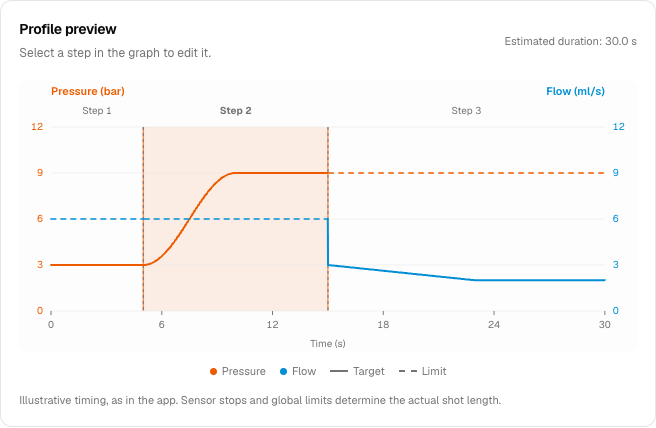
Orange = pressure
Blue = flow
Solid = target
Dashed = restriction
Vertical dashed boundaries separate steps. Timing is illustrative: sensor stops and global limits determine the actual shot length. The graph shows the requested profile, not a prediction of your machine’s response.
Take it to your machine
Export JSON downloads a file named after your profile. Keep that original file so you can return to it later.
In the mobile app
- Make the downloaded JSON available on your phone, for example through AirDrop or your files app.
- Open the mobile profile editor and tap Import JSON beside Scan QR.
- Tap Choose JSON file and select the file, or paste its contents and tap Review profile. Check the preview, then tap Use profile.
- Review the name, steps, and stops. With your Bean Pounder connected, tap the Save profile disk icon to save to the device.
- Back in the profile list, choose Set active for the profile you want to use.
The export summary shows the file size. Files must fit the device’s 3,967-byte limit; a complex profile may reach that before 25 steps. If export is blocked, follow the displayed errors, remove unneeded steps or stops, or shorten the name.
Using very short timings?
Exported files use milliseconds automatically, including subsecond timings. In the mobile importer, leave JSON time units on Milliseconds (device) for files exported here, and review the imported values before saving.
Continue from a file
Back on the web, choose Import JSON, then Upload .json or paste the file contents. Leave the time setting on Milliseconds — device / Gaggiuino JSON for files exported here. Choose seconds only for editor JSON that actually stores seconds.
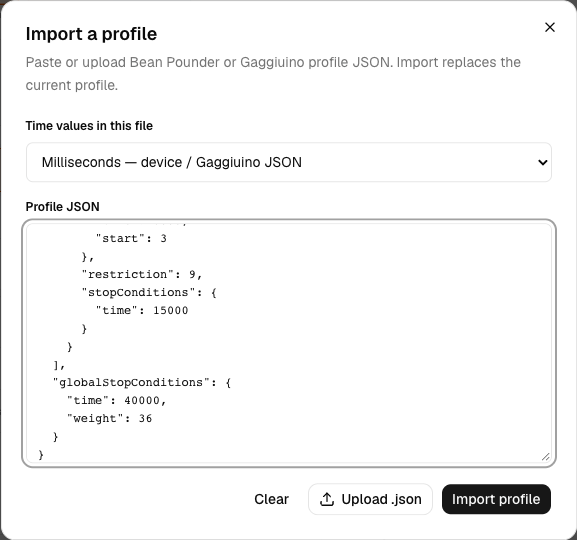
Import profile replaces the profile currently on the page, so export any work you want to keep first. If validation fails, correct the reported fields; your current profile stays in place.
Share a QR code
Choose Show QR code, then Share QR image to send the profile through your device’s share menu. If file sharing isn’t supported, it downloads a PNG you can attach in Discord or another chat. Download QR PNG is always available.
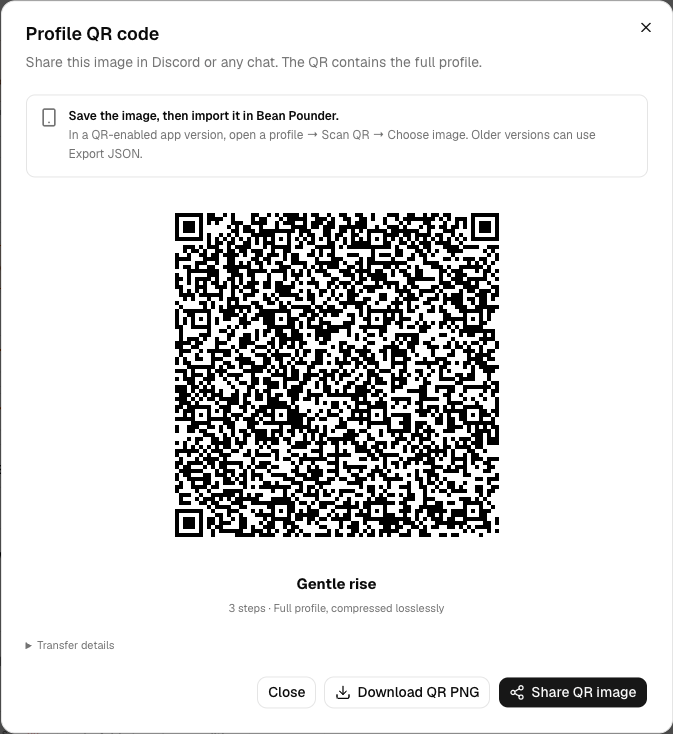
Share the original PNG so the code stays sharp. If it is too dense to scan, display it at a larger size or choose the saved image in the app. If the profile cannot fit one QR, shorten it or transfer the JSON file.
Create a profile